Why Moving Rows Between Sheets Fails — And How to Fix It
A simple task that isn’t simple at all
Moving a row from one sheet to another sounds trivial. Copy, paste, delete the original — done, right? But anyone who has built a workflow in Google Sheets knows that the moment you automate this with Apps Script or do it quickly by hand, things start going wrong. Rows vanish. The wrong record gets deleted. Data ends up in the wrong sheet.
The root cause is something most people never think about: row indices shift the instant you insert or delete a row. And if you’re working fast, or if a teammate edits the sheet at the same time, the row your script thinks it’s targeting is no longer the row it’s actually touching.
The row-index problem, explained
Imagine you have a task tracker. Your script is set to move Row 5 (“Follow up with vendor”) from To-Do to Done whenever its status changes. Here’s what a typical script does:
Step 1 — Read the row at index 5. Script grabs the data: “Follow up with vendor.”
Step 2 — Append it to the Done sheet. The row is copied over successfully.
Step 3 — Delete row 5 from To-Do. Here’s where it breaks.
⚠ The problem: Between step 1 and step 3, another user deleted Row 2. Now every row below it has shifted up by one. Row 5 is no longer “Follow up with vendor” — it’s a completely different task. Your script deletes the wrong record.
Let’s see this visually.
Before: Script targets Row 5
| Row | Task | Status |
|---|---|---|
| 2 | Send proposal | Done |
| 3 | Book meeting room | In Progress |
| 4 | Update slides | To-Do |
| 5 | Follow up with vendor ← target | Done |
| 6 | Review contract | To-Do |
User B deletes Row 2 while the script runs…
| Row | Task | Status |
|---|---|---|
| 2 | Book meeting room | In Progress |
| 3 | Update slides | To-Do |
| 4 | Follow up with vendor | Done |
| 5 | To-Do |
The script still targets Row 5, but the data has shifted. The wrong row gets deleted.
This isn’t a rare edge case. It happens every time two people work in the same sheet, or when a script processes multiple rows in a loop and deletes them one at a time without accounting for the shift. The faster you work, the more likely you’ll hit it.
Why the common workarounds fail
“Just delete from bottom to top”
Reversing your loop order prevents index shifts within a single script execution. But it does nothing about concurrent edits from other users or other running scripts. In a shared sheet, you’re still exposed.
“Use LockService in Apps Script”
Google’s LockService prevents two scripts from running simultaneously, but it doesn’t prevent a human user from manually editing the sheet while your script is mid-execution. And it doesn’t help at all if two separate triggers fire within milliseconds of each other.
“Match by value, not by index”
Smarter, but brittle. What if two rows have the same task name? What column do you match on? What if someone edits the value in the same moment? You end up writing complex, hard-to-maintain matching logic — and it still breaks under edge cases.
The real issue: Google Sheets does not support atomic operations. You cannot copy a row and delete the original as a single, indivisible action. There will always be a gap between the copy and the delete — and in that gap, anything can change. Any approach that depends on row numbers during deletion is a race condition waiting to happen.
How Sheet Automation handles this differently
Sheet Automation was designed from the ground up to solve exactly this class of problem. Since true atomic row moves are impossible in Google Sheets, it doesn’t try to fake them. Instead, it uses a fundamentally safer strategy: delayed safe deletion based on content-based identification.
Below is a screenshot of the automation rule to move row.
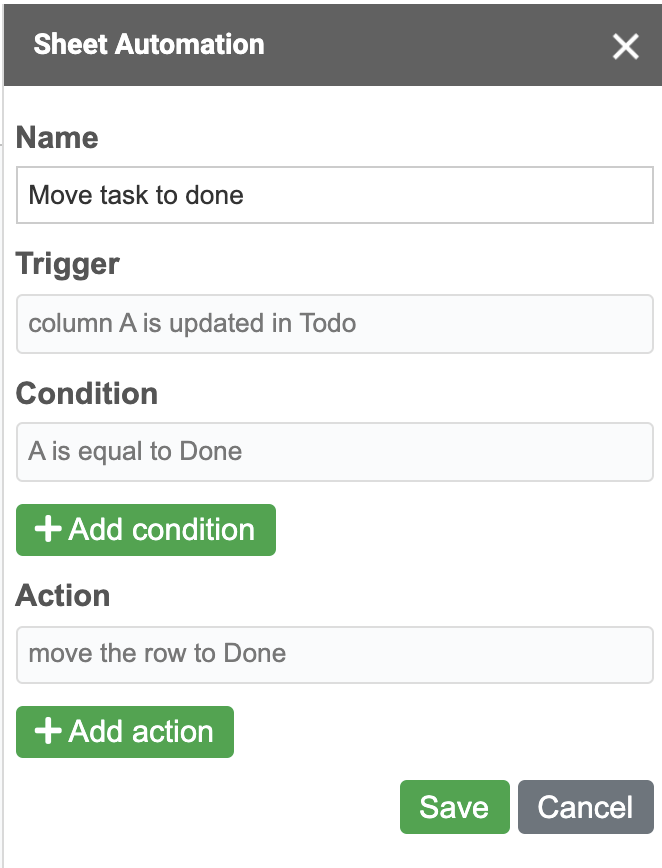
And how it works:
Step 1 — Event-driven trigger. When a value changes (e.g., status → “Done”), Sheet Automation captures the exact cell and row content at the moment of the edit — before any other change can interfere.
Step 2 — Copy the row to the destination sheet. The full row data is appended to the target sheet, ensuring nothing is lost.
Step 3 — Delayed safe deletion. This is the key difference. Instead of immediately deleting the row at whatever index it was at, Sheet Automation waits and then re-identifies the original row by its actual content — not its position. It scans the source sheet for the row whose values match the record it just moved, and only then deletes it.
Because the deletion targets a content-based identifier rather than a row number, it doesn’t matter how many rows were inserted, deleted, or rearranged in the meantime. The addon finds and removes the correct record every time.
✓ Why this works: Row numbers are unstable. Content is stable. By decoupling the deletion step from the original row index and re-locating the row by what it contains, Sheet Automation eliminates the entire category of race conditions that plague index-based approaches.
Side-by-side comparison
| Challenge | Manual / Apps Script | Sheet Automation |
|---|---|---|
| Row index stability | ✗ Shifts on every insert/delete | ✓ Content-based targeting |
| Multi-user safety | ✗ Race conditions between copy & delete | ✓ Delayed safe deletion finds the right row |
| Fast sequential edits | ✗ Triggers can overlap and corrupt | ✓ Queued, ordered execution |
| Setup complexity | ✗ Custom code required | ✓ No-code configuration |
| Error recovery | ✗ Silent failures, lost data | ✓ Built-in logging & alerts |
| Maintenance | ✗ Breaks when sheet structure changes | ✓ Adapts to column changes |
Who runs into this problem most?
If any of these sound familiar, the row-index problem is costing you time and trust in your data:
Operations teams using sheets as lightweight task boards, moving items between “Backlog → In Progress → Done” tabs.
Sales teams moving leads between pipeline stages.
HR departments tracking applicants across hiring stages.
Agencies managing client deliverables across status sheets.
Anyone who has ever opened their sheet in the morning and thought, “Wait — where did that row go?”
Stop debugging. Start automating.
The row-index problem is solved — not by pretending atomic moves are possible in Google Sheets, but by designing around the limitation intelligently. You don’t need to write defensive Apps Script code, you don’t need to add helper columns with unique IDs, and you don’t need to tell your team to “please don’t edit the sheet while the script is running.”
Sheet Automation moves rows reliably — between sheets, between tabs, across workbooks — regardless of how many people are editing, how fast changes happen, or how complex your workflow gets.
Install it and set up your first row-move rule in under two minutes. No code. No broken data.
There are currently no comments on this article, be the first to add one below