How to Copy Automation Rules Automatically When You Duplicate a Google Sheet
You’ve built the perfect project tracking spreadsheet. The columns are dialed in, the formulas work, the conditional formatting is crisp — and you’ve spent hours setting up automation rules that send status-update emails, move completed tasks to an archive sheet, and ping your team on Slack when deadlines are approaching.
Now a new project starts, and you need a fresh copy.
You hit File → Make a copy, and your spreadsheet duplicates beautifully. Formulas? Copied. Formatting? Copied. Data validation? Copied.
But your automation? Gone. Or worse — half-broken.
If you’ve built automations using Google Apps Script, you’ve probably run into this wall. The script code copies over, but the triggers don’t. The authorization breaks. And suddenly you’re re-doing setup work that should have been a one-click operation.
This is one of the most frustrating limitations of template-based workflows in Google Sheets, and it’s exactly the problem Sheet Automation can solve.
The problem: why automation breaks when you copy a spreadsheet
To understand why this happens, it helps to know how Google handles scripts and triggers behind the scenes.
When you duplicate a Google Sheet that has a bound Apps Script project, three things happen:
1. The script code copies — but the authorization doesn’t.
Google treats each copy as a new, independent project. Even though the code is identical, the new spreadsheet has never been authorized to run it. The first time someone tries to trigger the script, they’ll see a permissions prompt asking them to review and approve access to Gmail, Drive, or Sheets — the same scopes the original already had.
For a technical user, this is a minor annoyance. For a team member who just needs to use the template, it’s a confusing wall of OAuth dialogs.
2. Installable triggers don’t transfer.
This is the bigger problem. Google Sheets has two types of triggers: simple triggers (like onEdit) and installable triggers (like time-driven or event-based triggers that you set up in the Apps Script dashboard).
Simple triggers — the basic ones like onEdit and onOpen — do carry over to the copy. But they come with severe limitations: they can’t access services that require authorization (like sending email), they can’t run for more than 30 seconds, and they can’t make external API calls.
Installable triggers — the ones that actually power useful automations like “send an email when column B changes to Approved” or “run this function every Monday at 9 AM” — do not copy. They are bound to the original user’s account and the original spreadsheet’s script project. When you duplicate the sheet, those triggers simply don’t exist in the new copy.
This means someone has to manually open the Apps Script editor in the new spreadsheet, navigate to Triggers, and recreate each one from scratch. If the template has five or six triggers, this process alone can take 15–20 minutes — assuming the person doing it knows how Apps Script triggers work.
3. Hardcoded references can break.
If your script references a specific spreadsheet ID, sheet name, or cell range, those references may point back to the original sheet rather than the copy. This creates silent failures where the automation appears to work but is actually reading from or writing to the wrong document.
The traditional workaround (and why it doesn’t scale)
The most common advice you’ll find in community forums is to write a “setup” function — a script that programmatically creates all the triggers when run in a new copy:
function setupTriggers() {
  ScriptApp.newTrigger('onStatusChange')
    .forSpreadsheet(SpreadsheetApp.getActive())
    .onEdit()
    .create();

  ScriptApp.newTrigger('sendWeeklyReport')
    .timeBased()
    .everyWeeks(1)
    .onWeekDay(ScriptApp.WeekDay.MONDAY)
    .atHour(9)
    .create();
}
This works, technically. But it introduces its own problems:
You still need manual authorization. The first time setupTriggers() runs, the user must approve permissions. For non-technical team members, this is a friction point that often generates support requests.
You need to remember to run it. The setup function doesn’t execute automatically. Someone has to open the script editor and run it — or you have to build a custom menu item and instruct users to click it. Either way, it’s a manual step that’s easy to forget.
You need to maintain the code. Every time you change your automation logic — add a new trigger, modify a schedule, update a condition — you need to update both the actual script functions and the setup function. This creates a maintenance burden that grows over time.
It doesn’t handle conditions or logic. A setup script can create triggers, but it can’t replicate complex conditional logic like “only send an email if column C equals ‘Urgent’ AND column D is within 3 days of today.” That logic lives in the script functions themselves, which do copy — but testing and debugging them in each new spreadsheet is its own project.
For teams that spin up a new project spreadsheet every week or every month, this process becomes a recurring tax on productivity.
The simpler way: Sheet Automation handles duplication automatically
This is where a different approach pays off. Instead of building automation logic in Apps Script, you can use Sheet Automation — a Google Sheets add-on that stores automation rules at the add-on level rather than as bound scripts.
Here’s how the workflow looks:
Step 1: Build your automation rules in your template spreadsheet
Open your project tracking template and install Sheet Automation from the Google Workspace Marketplace. Then create your rules using the visual rule builder:
Rule 1 — Status change notification:
- Trigger: Column “Status” is updated
- Condition: Status equals “Needs Review”
- Action: Send email to the address in “Assignee Email” column
Rule 2 — Due date reminder:
- Trigger: Due date, 2 days before the date in “Deadline” column
- Condition: Status is not “Complete”
- Action: Send reminder email to assignee
Rule 3 — Archive completed tasks:
- Trigger: Column “Status” is updated
- Condition: Status equals “Complete”
- Action: Move row to “Archive” sheet
Rule 4 — Weekly status report:
- Trigger: Schedule, every Monday at 8:00 AM
- Action: Export sheet to PDF and email to project lead
Each rule takes about 2 minutes to set up — no code, no script editor, no trigger configuration.
Step 2: Duplicate through Sheet Automation
When a new project starts, you have two ways to copy the spreadsheet with all automation rules intact:
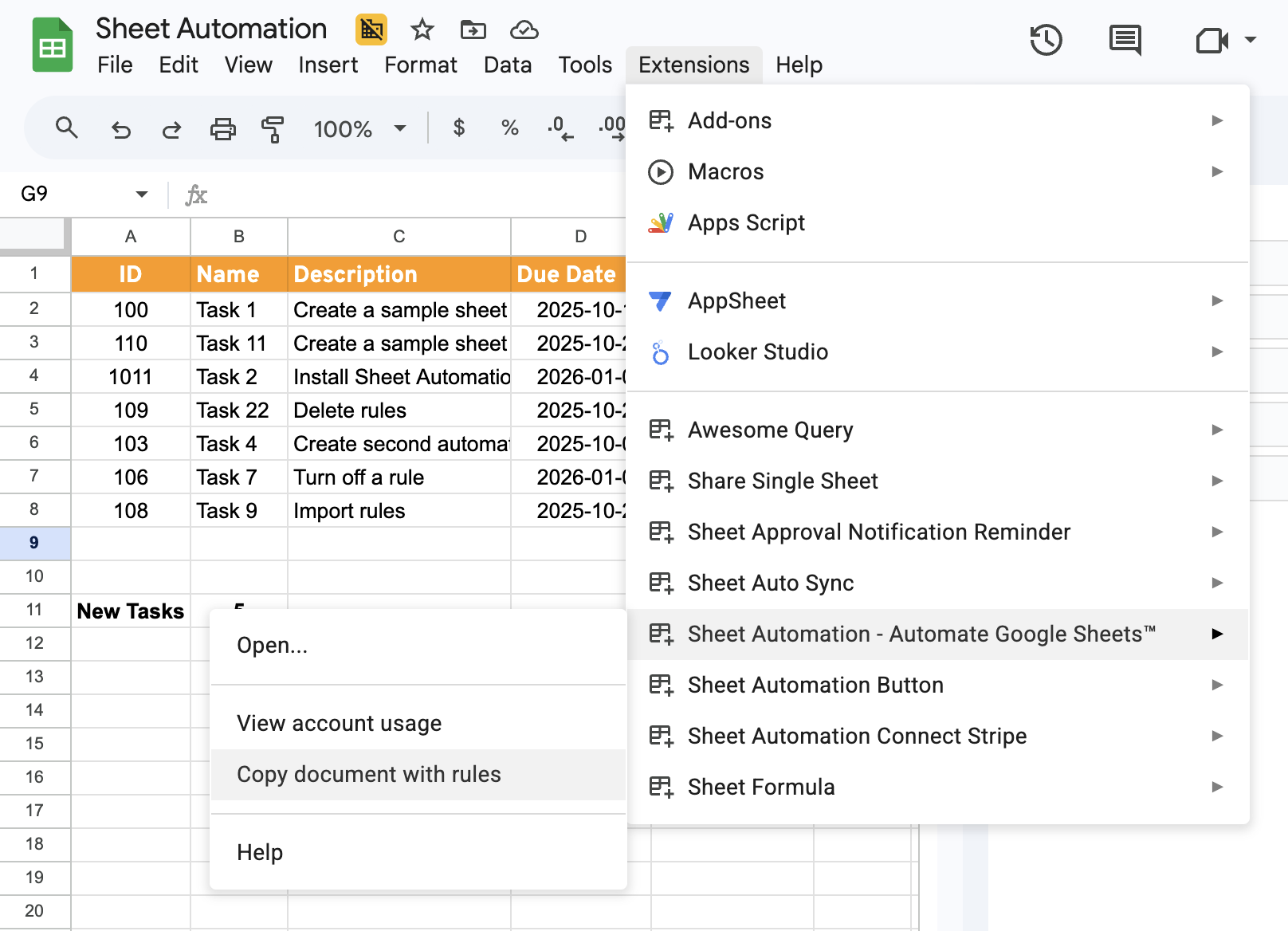
Option A — Use the Sheet Automation menu: Instead of the standard File → Make a copy, use Sheet Automation’s built-in duplication option. This creates a new copy of your spreadsheet and automatically carries over every automation rule you’ve set up — fully configured, fully active, ready to run.
Option B — Use the Create Spreadsheet action: If your workflow involves programmatically spinning up new project sheets (for example, when a new client is onboarded), you can use Sheet Automation’s “Create Spreadsheet” action within a rule. This action creates a new spreadsheet from your template and automatically includes all the automation rules from the source document.
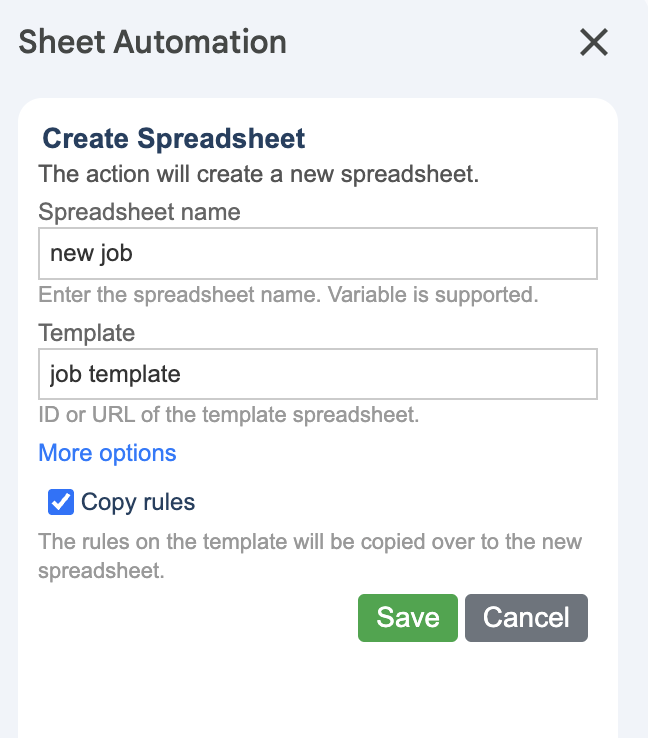
Either way, the result is the same: your new spreadsheet arrives with every rule already in place — no authorization prompts, no trigger setup, no manual configuration. The add-on is already authorized on your Google account (you approved it once when you first installed it), so every new spreadsheet inherits that authorization automatically.
There is no export step. There is no import step. You copy the sheet, and the rules just come with it.
Why this works when Apps Script doesn’t
The key difference is architectural. Apps Script triggers are tied to a specific script project, which is bound to a specific spreadsheet. When you copy the spreadsheet, you get a new script project that has no relationship to the original’s triggers.
Sheet Automation rules, on the other hand, are managed by the add-on itself. The add-on runs with its own authorization, independent of any individual spreadsheet. When you duplicate a spreadsheet through Sheet Automation, it knows about the rules attached to the source document and automatically replicates them in the new one — using its existing permissions, with no re-authorization needed.
This also means:
- Team members don’t need to understand triggers or scripts. They duplicate the sheet through Sheet Automation’s menu and start working. There’s no second step.
- Every copy is a perfect clone. The rules in the new spreadsheet are identical to the template — same triggers, same conditions, same actions. No risk of someone forgetting to set up a trigger or misconfiguring a condition.
- No silent failures from hardcoded references. Sheet Automation rules reference columns by name, not by spreadsheet ID. They automatically adapt to whichever document they’re running in.
Real-world example: a consulting firm’s client project template
To make this concrete, here’s a workflow we see frequently among Sheet Automation users.
A small consulting firm manages each client project in its own Google Sheet. The template includes:
- A “Tasks” sheet with columns for task name, owner, status, priority, and deadline
- An “Hours” sheet for time tracking
- A “Deliverables” sheet for tracking milestones
The automation rules attached to the template:
| Rule | Trigger | Action |
|---|---|---|
| New task notification | Row added to “Tasks” | Email the task owner with assignment details |
| Overdue alert | Due date passed + Status ≠ Complete | Email project lead + Slack notification |
| Status change log | “Status” column updated | Copy row to a “Change Log” sheet with timestamp |
| Weekly client report | Schedule: every Friday 4 PM | Export “Tasks” sheet as PDF, email to client |
| Hours threshold | “Total Hours” cell > budget | Email project lead with budget warning |
Without Sheet Automation, each new client project would require someone to open the Apps Script editor, recreate all five triggers, re-authorize the project, and test each one. With Sheet Automation, it’s: duplicate the sheet from the Sheet Automation menu → done. All five rules are live in the new document instantly.
Over the course of a year with 20+ client projects, this saves dozens of hours of setup time and eliminates the risk of misconfigured triggers causing missed notifications or silent failures.
The firm can even take this a step further: create a rule in their master intake sheet that uses the Create Spreadsheet action to automatically spin up a new project sheet whenever a new client row is added. The new spreadsheet is created from the template, complete with all automation rules — so the entire project setup becomes a single row entry.
When to use Apps Script vs. Sheet Automation
Apps Script is still the right choice for certain scenarios:
- Complex data transformations that require custom logic beyond what a rule builder can express
- Deep integrations with Google APIs (Calendar, Drive, Gmail drafts with attachments, etc.)
- Custom UI elements like sidebars, dialogs, or custom menus
But for the most common automation patterns — sending emails, moving rows, triggering alerts, scheduling reports, monitoring data changes — Sheet Automation handles them with less setup, less maintenance, and zero duplication friction.
The sweet spot for many teams is using both: Sheet Automation for the repeatable, template-friendly workflows that need to copy cleanly across documents, and Apps Script for the occasional custom function that goes beyond what a no-code tool can do.
Get started with copyable automations
If you’re managing projects in Google Sheets and spinning up new spreadsheets regularly, here’s how to set up a workflow that actually scales:
- Install Sheet Automation from the Google Workspace Marketplace
- Open your project template and build your automation rules with the visual rule builder
- When you need a new copy, duplicate through Sheet Automation’s menu — all rules carry over automatically
- Or set up a Create Spreadsheet action to generate new project sheets on demand, complete with rules
No export. No import. No re-authorizing scripts. No manually recreating triggers. No explaining OAuth prompts to your team.
Your template copies everything — including the automation that makes it useful.
Sheet Automation is a Google Sheets add-on trusted by 300,000+ users. It automates emails, row moves, data processing, reminders, and more — all without code. Learn more →
There are currently no comments on this article, be the first to add one below